
Run a live PSindex® debrief
Turn any heatmap segment into a guided, presentation-ready debrief with benchmark comparisons, AI themes from comments, and discussion questions your team answers live from their phones.
Survey results only matter when a team talks about them. The new PSindex® debrief turns any group in your heatmap into a guided presentation you can run live. It walks the room through the results one step at a time, compares them to the benchmark you choose, and asks discussion questions that participants answer from their own devices.
What’s new
Start a debrief from the heatmap
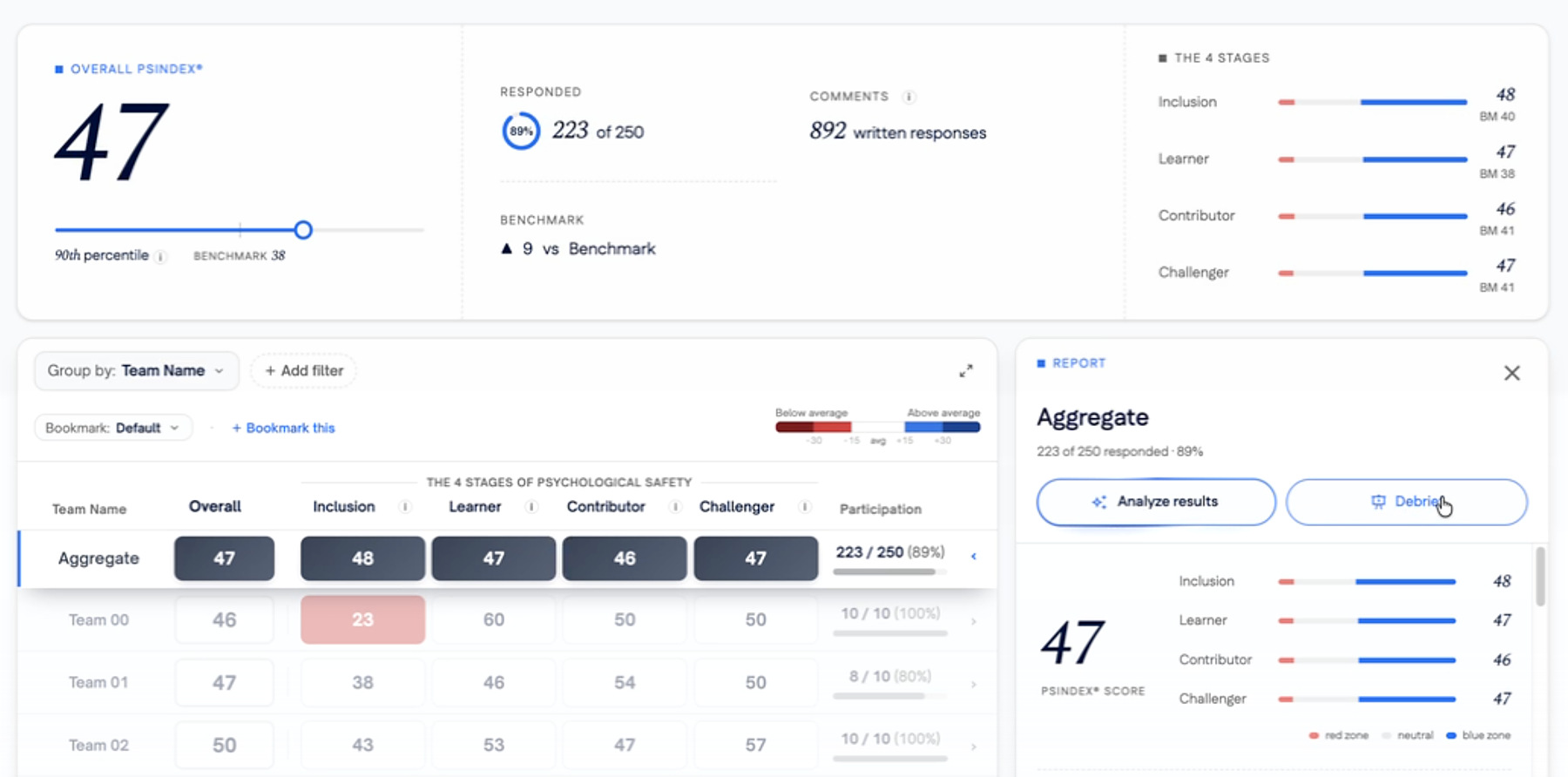
Admins can create a debrief from any PSindex® survey’s heatmap. Select a row, and the debrief uses whatever segment you’ve set up with Group by and Add filter: the whole organization (Aggregate), a single team, or any other slice. In the Report panel, select Debrief, next to Analyze results.
Name the debrief and choose the benchmark to compare against. The segment you selected is shown so you can confirm you’re debriefing the right group.
Manage your debriefs in one place
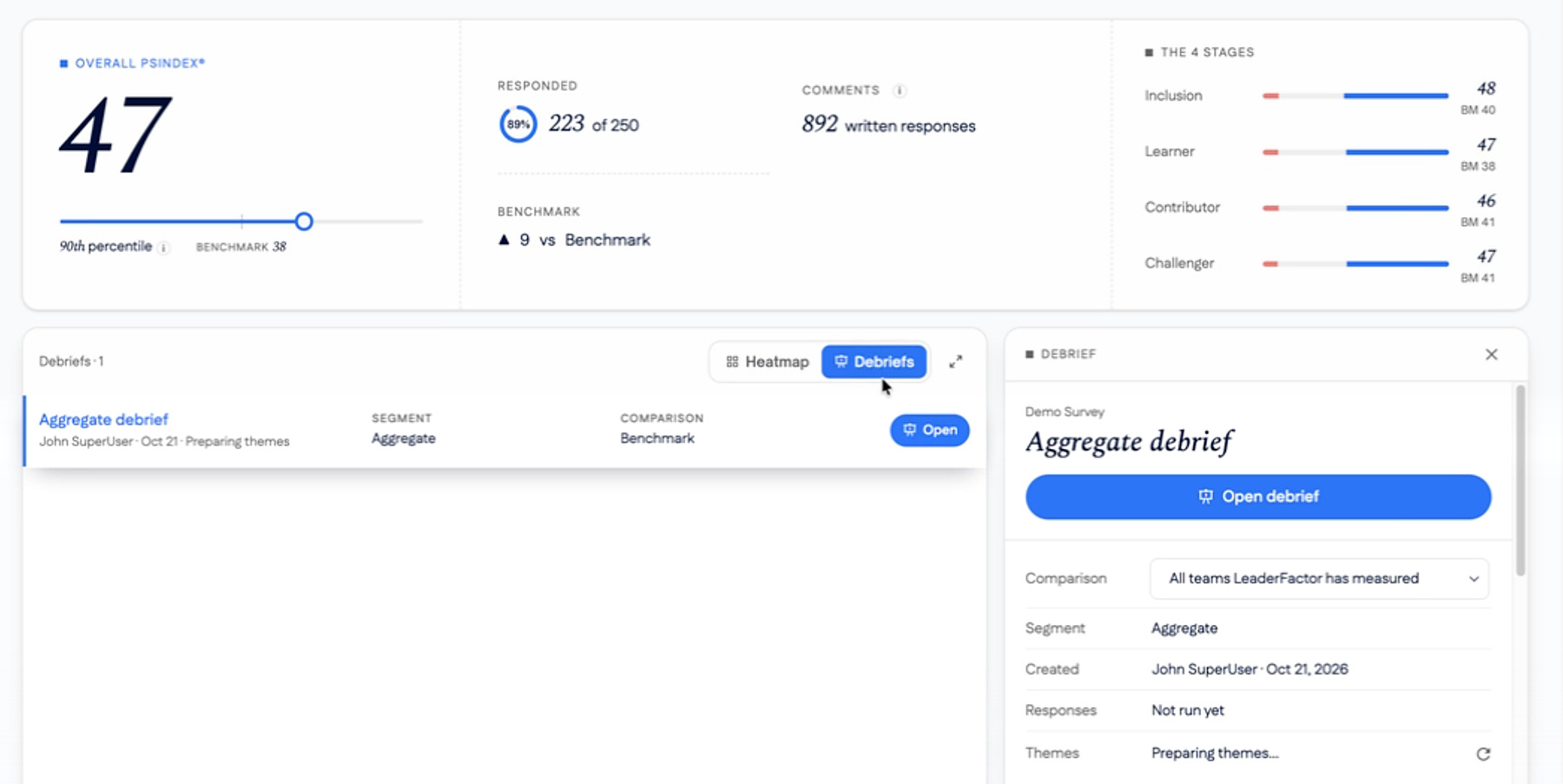
Once a debrief exists, a Heatmap / Debriefs toggle appears above the grid. The Debriefs view lists every debrief for the survey with its segment and comparison. Select one to open its settings panel, where you can:
- Change the comparison benchmark at any time.
- Review the details: the segment, who created it and when, and how many discussion responses have come in.
- See and refresh themes. When a debrief is created, themes are generated with AI from the segment’s written comments. They stay the same so a facilitator can prepare ahead of time. If new comments arrive, select the refresh icon to regenerate them.
- Set up discussion questions. The debrief pauses for discussion after the overall results and after each of the four stages. For each one, choose up to three of the suggested questions, write your own, or turn that discussion off.
When you’re ready, select Open debrief.
Invite the room to join
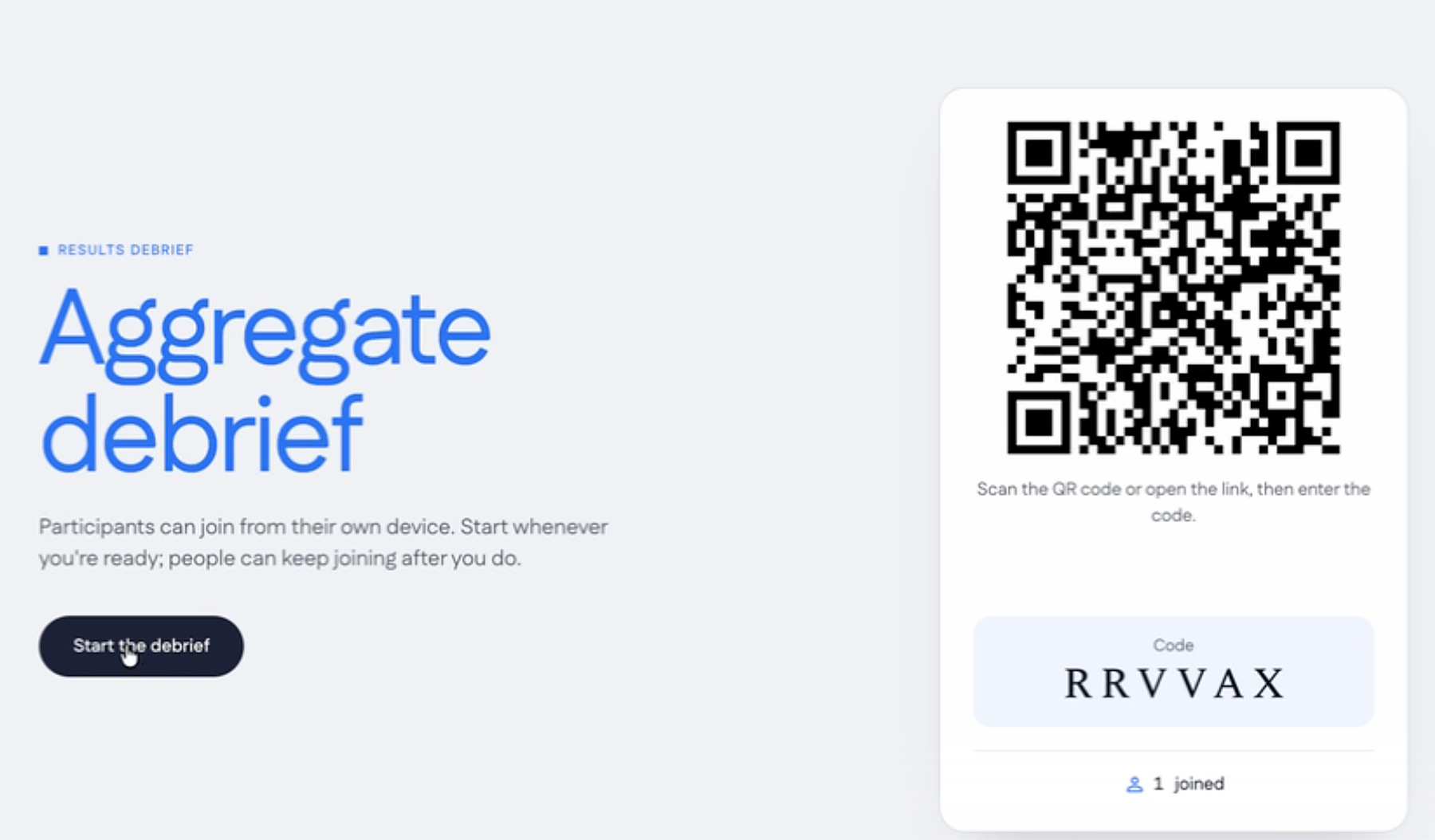
The debrief opens on a welcome screen. Participants join from their own device by scanning the QR code, or by opening the link and entering the code. The joined count shows how many people are connected. Select Start the debrief whenever you’re ready. People can keep joining after you start.
Walk through the results
Scroll, or use the arrow keys, to move through the debrief:
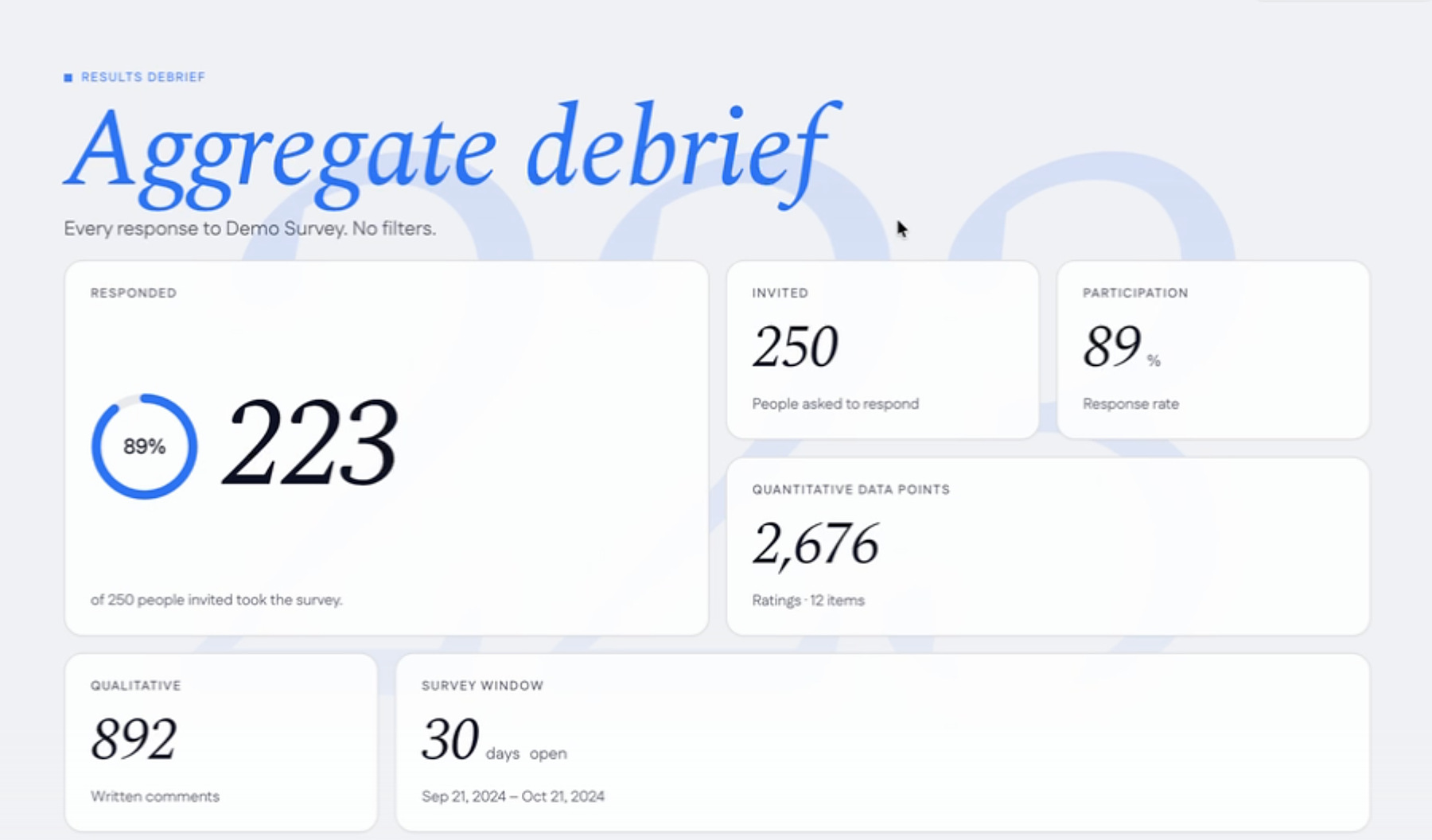
- Who responded: how many people were invited and responded, the participation rate, the number of ratings and written comments, and the dates the survey was open.
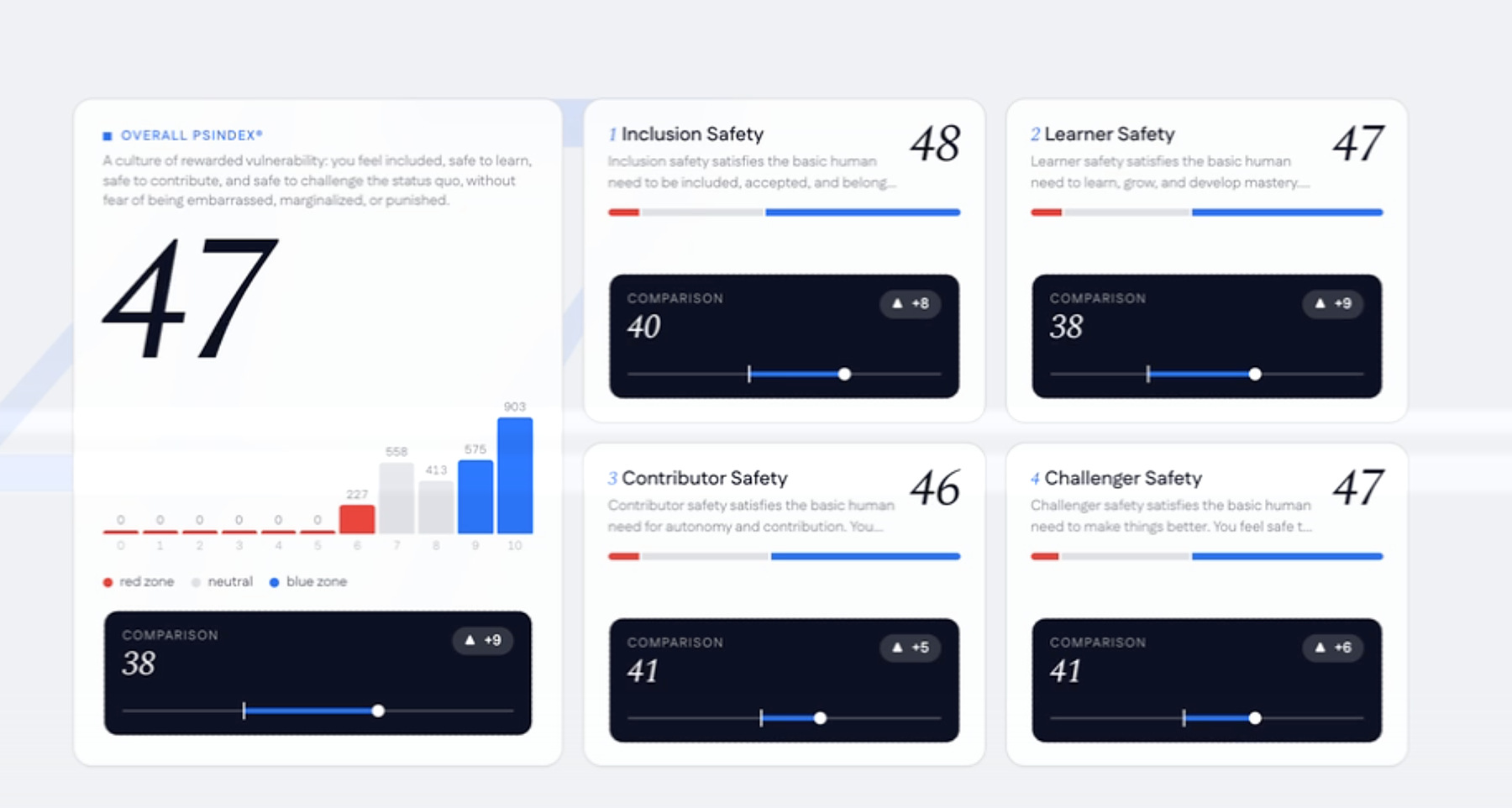
- The overall picture: the overall PSindex® score, how responses spread across the red zone, neutral, and blue zone, and a score for each of The 4 Stages of Psychological Safety™.
- The comparison: how each score stacks up against your chosen benchmark, with the difference for each.
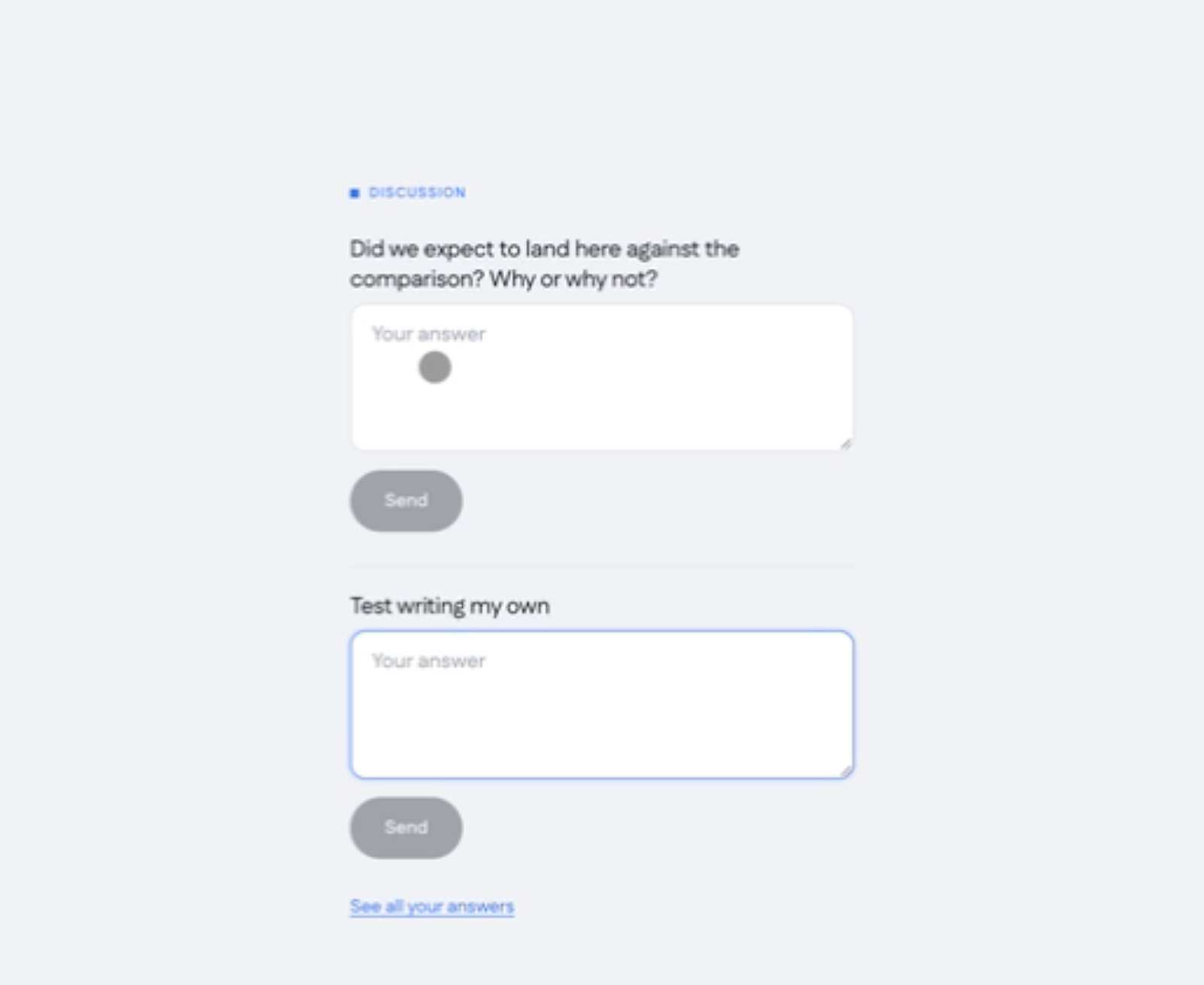
- Discussion: participants answer your questions from their device.
- Each stage in depth: Inclusion, Learner, Contributor, and Challenger Safety one at a time, each with its score against the comparison, the spread of responses, the highest, middle, and lowest items, and three themes from the comments. Each stage ends with its own discussion.
Capture the conversation
At each discussion, participants type their answers on their phone and select Send. They can revisit and edit earlier answers at any time with See all your answers. Answers aren’t shown on the presentation screen, so people can speak openly. They collect in the debrief’s settings panel for you to review afterward.
Improvements
- Themes stay stable between sessions and regenerate only when you ask.
- Every debrief keeps its own segment, comparison, and questions, so you can prepare one for each team before the day.
Get started
- Open a PSindex® survey and go to the heatmap.
- Select the row you want to debrief, then select Debrief in the Report panel.
- Name it, choose a comparison, and set up your discussion questions in the settings panel.
- Select Open debrief, have the room scan the QR code, and select Start the debrief.