
Commitment Prioritization is now the Behavior Change Plan
The lesson that closes each course has a new name and a simpler, one-screen design that puts learners in control of which behaviors they start.
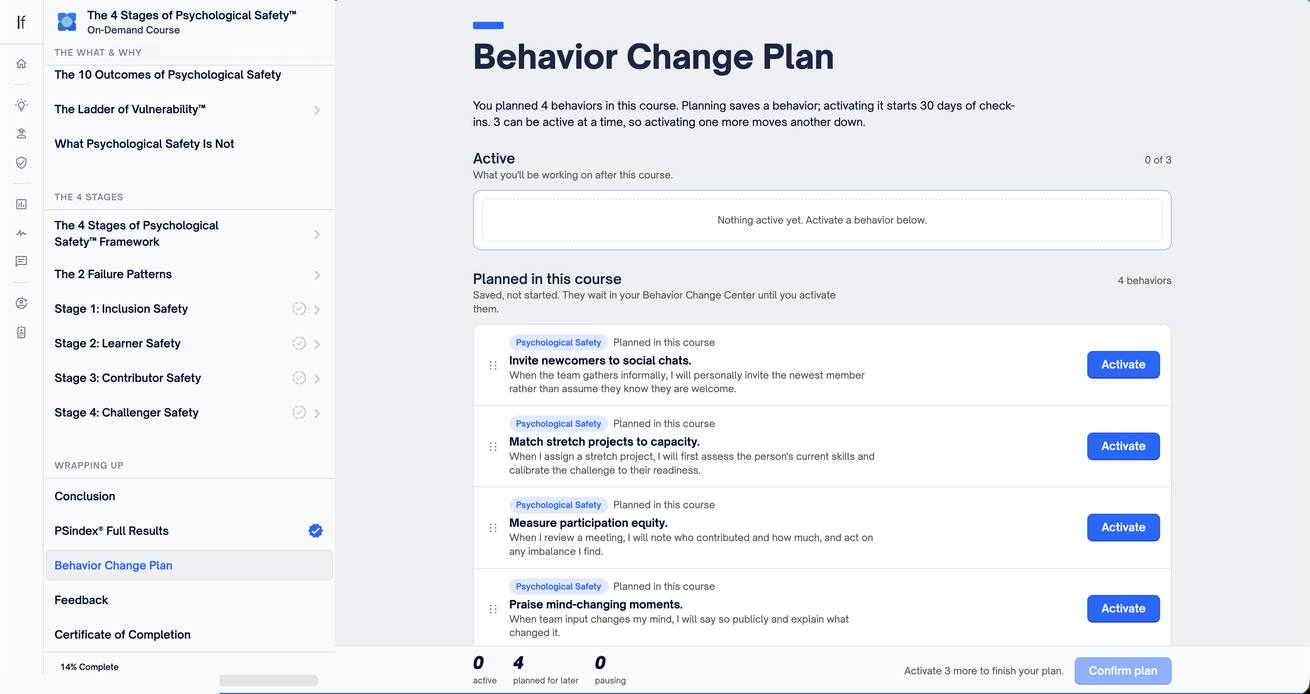
The lesson at the end of each course is now called the Behavior Change Plan, and it has been redesigned. Learners see every behavior they planned on one screen and decide which ones to start, with a button for every move. It’s clearer, it’s faster, and it works just as well on a phone.
What’s new
One screen, three sections
The old lesson took two screens: pick behaviors, then drag them into priority order. The Behavior Change Plan puts everything on one screen:
- Active: what you’ll be working on after the course, up to three at a time.
- Planned in this course: behaviors saved during the course but not started. They wait in your Behavior Change Center until you activate them.
- Pausing: behaviors that were active before the course, which you’ve chosen to pause. Resume them any time from your Behavior Change Center.
Planning saves a behavior. Activating it starts 30 days of check-ins.
A button for every move
Each behavior has one clear action: Activate, Back to planned, Pause, or Keep active. You can also drag behaviors between sections.
No more manual juggling
Three behaviors can be active at a time. Activating a fourth just works: the new behavior goes to the top of Active, and the one at the bottom moves out to make room. A short message says where it went. Drag to reorder Active and you decide what moves out next.
A clear finish
Turn on Email reminders to get Monday and Friday check-in reminders, then select Confirm plan. Nothing is saved until you confirm. Afterward, the lesson shows exactly what you’re leaving with, and Manage in Behavior Change Center takes you there to change it later.
Improvements
- “Commitment” is now “behavior” throughout the Behavior Change Center and courses, so the words match what learners are actually doing.
- The lesson works fully with buttons, so it’s easy to use on phones and with a keyboard.
- Learners who already have three active behaviors can confirm without changing anything.
Get started
- Finish a course’s lessons, saving behaviors as you go.
- Open Behavior Change Plan at the end of the course.
- Select Activate on up to three behaviors.
- Select Confirm plan.