
Updated results screens for PSindex® Self-assessment
The newest version of The 4 Stages of Psychological Safety™ course adds a PSindex® Self-assessment results screen to every stage, an AI Coach debrief, a commitment picker that completes the lesson, and a full report you can share and print.
Assessment results are where the course gets personal. Until now, learners saw their PSindex® Self-assessment data in one place at the end. In the newest version of The 4 Stages of Psychological Safety™ course, results run through the whole journey: each of the four stages ends with its own results screen, and a full PSindex® Self-assessment report ties everything together in the Wrapping Up section. The redesign is live in both the on-demand online course and the workshop course.
Looking for the organization-level baseline experience instead? See A redesigned PSindex® Team Survey experience.
What’s new
A results screen for every stage
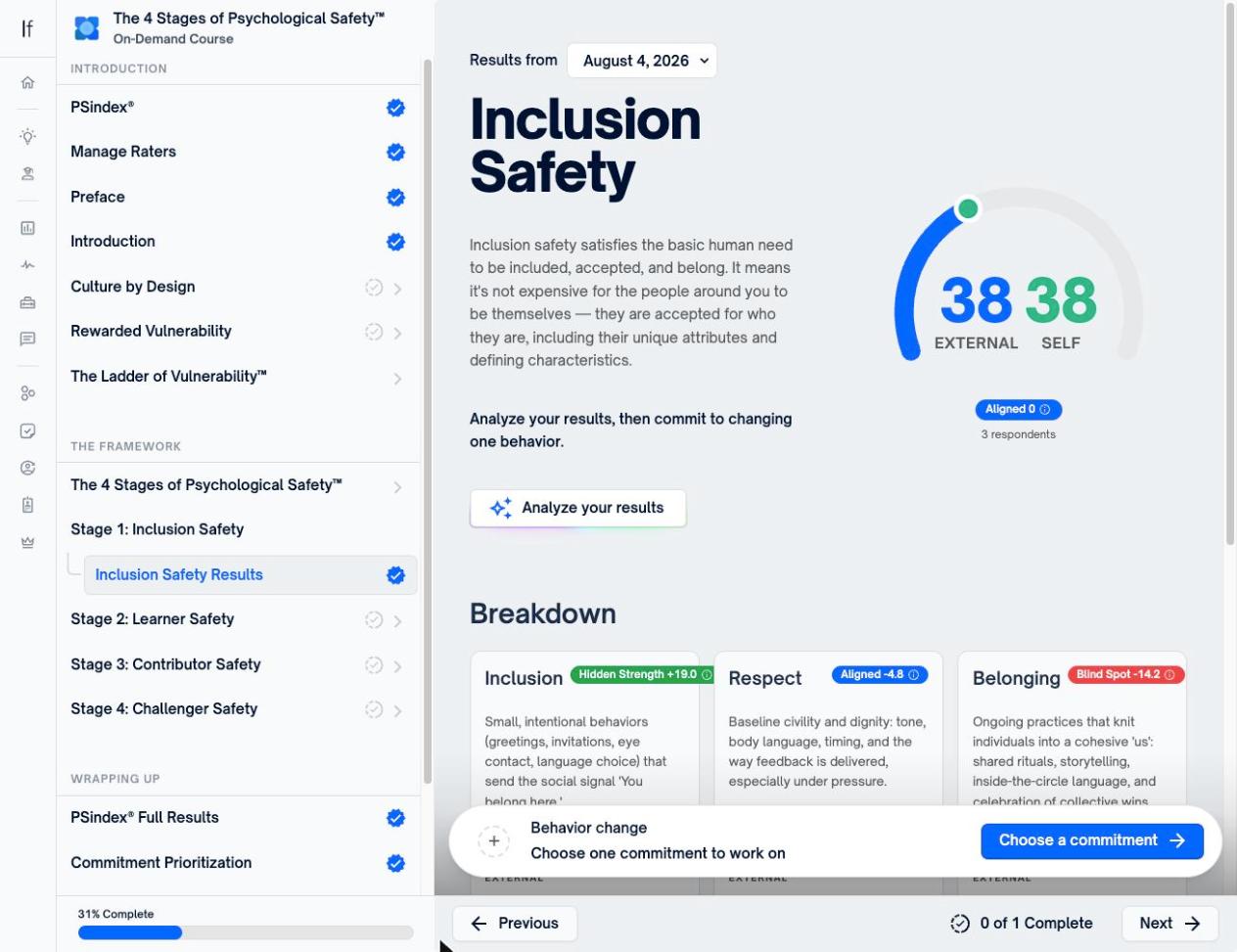
Every stage now ends with a results sub-lesson, and all four follow the same structure, so by the second stage learners already know how to read their data.
At the top, one gauge holds two numbers side by side: EXTERNAL, how raters experience the learner, and SELF, how the learner rated themselves. A classification pill underneath turns the difference into plain language, either Aligned, Blind Spot, or Hidden Strength, with the respondent count so learners know how many raters are behind the score. The screen states the assignment in one line: analyze your results, then commit to changing one behavior.
Gap education, built in
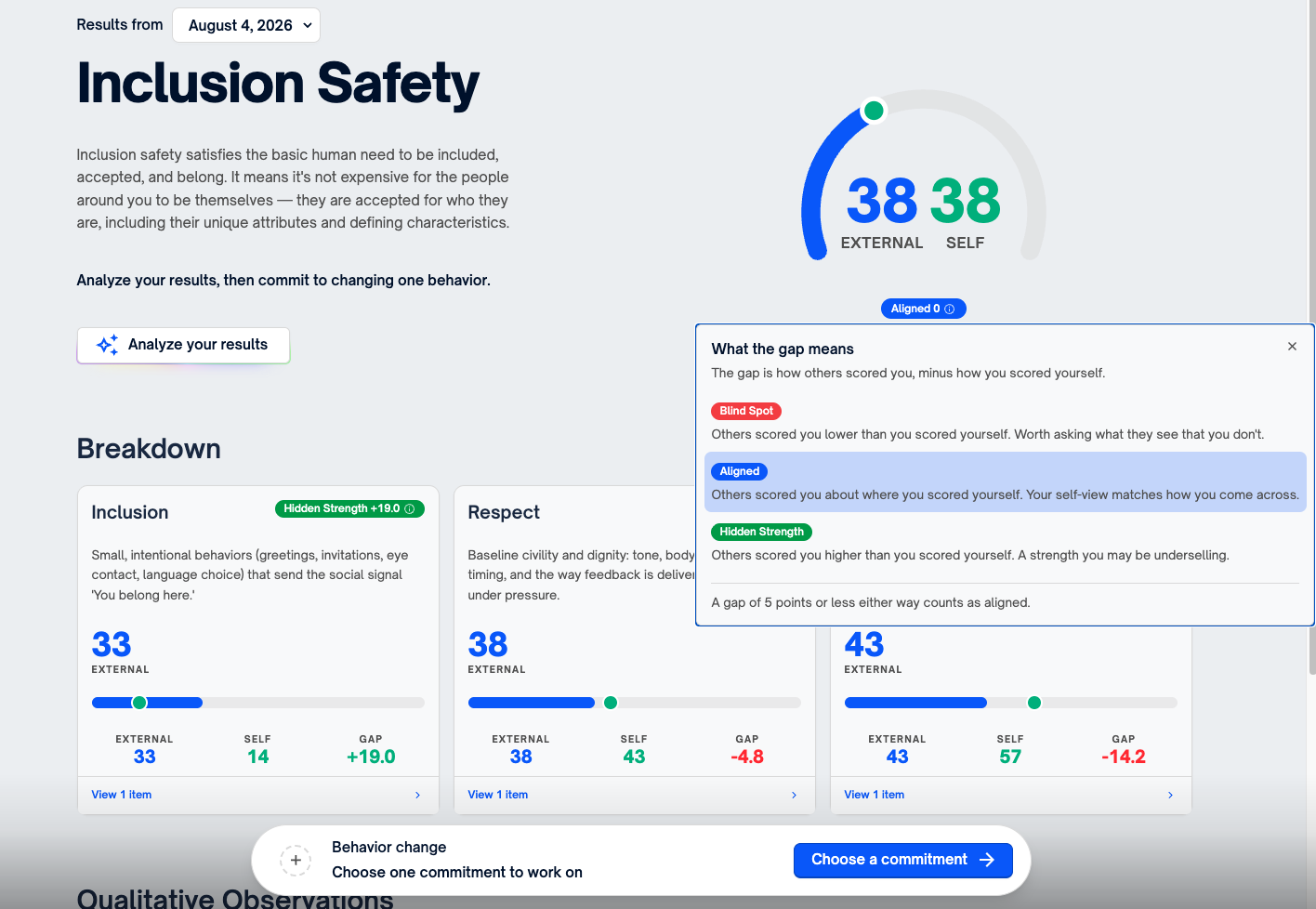
The info icon next to any classification opens a What the gap means explainer. The gap is how others scored you minus how you scored yourself. A Blind Spot means others scored you lower than you scored yourself, which is worth asking about. A Hidden Strength means others scored you higher, a strength you may be underselling. A gap of 5 points or less either way counts as aligned. Learners never have to remember the methodology, because it sits one tap away everywhere a classification appears, with the row matching their own result highlighted.
The sub-dimension breakdown
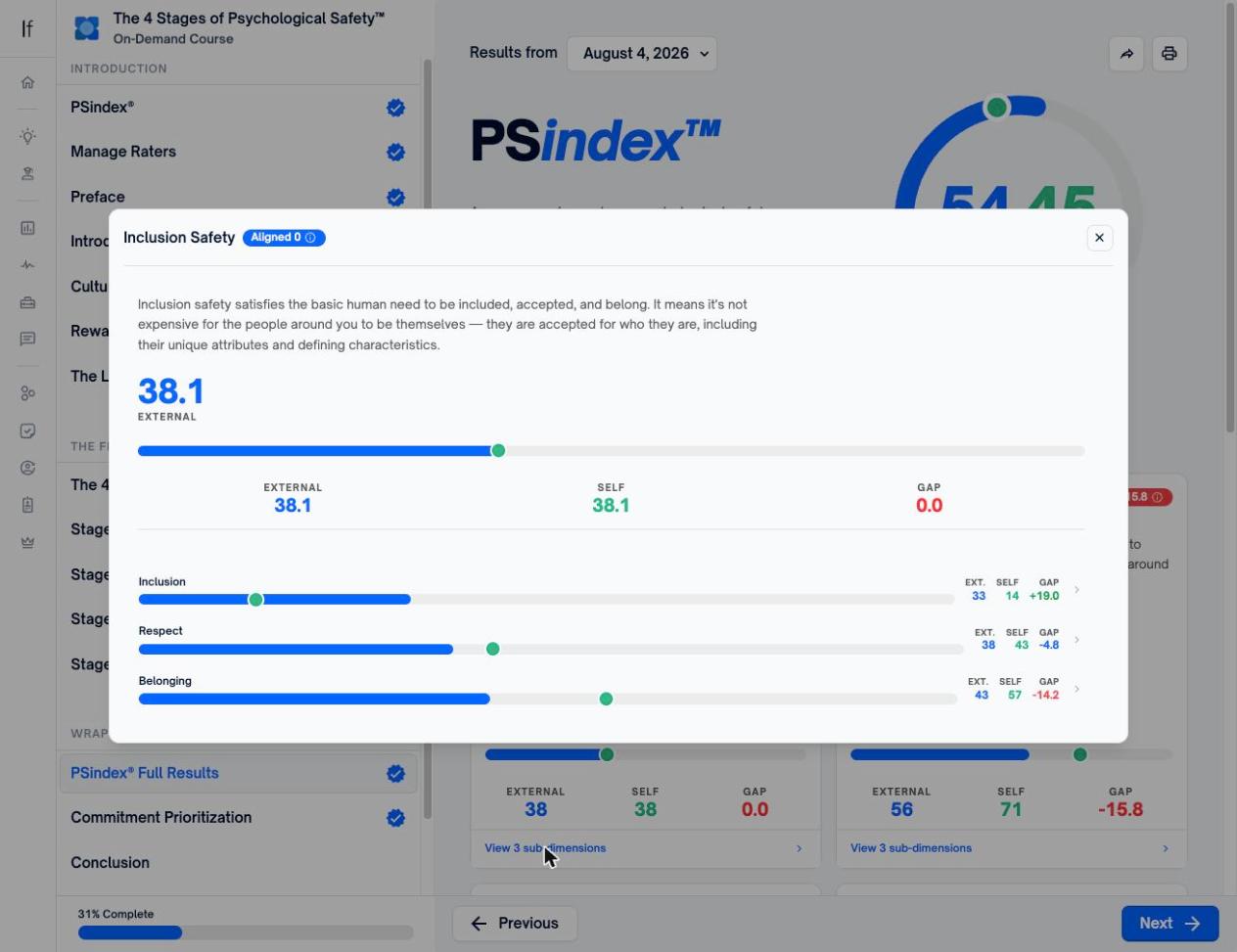
Below the gauge, three cards break the stage score into the behaviors underneath it. Inclusion Safety breaks into Inclusion, Respect, and Belonging. Each card carries its own classification and signed gap, a one-sentence definition of the behavior, the external score, a bar comparing external and self, and the exact EXTERNAL / SELF / GAP figures.
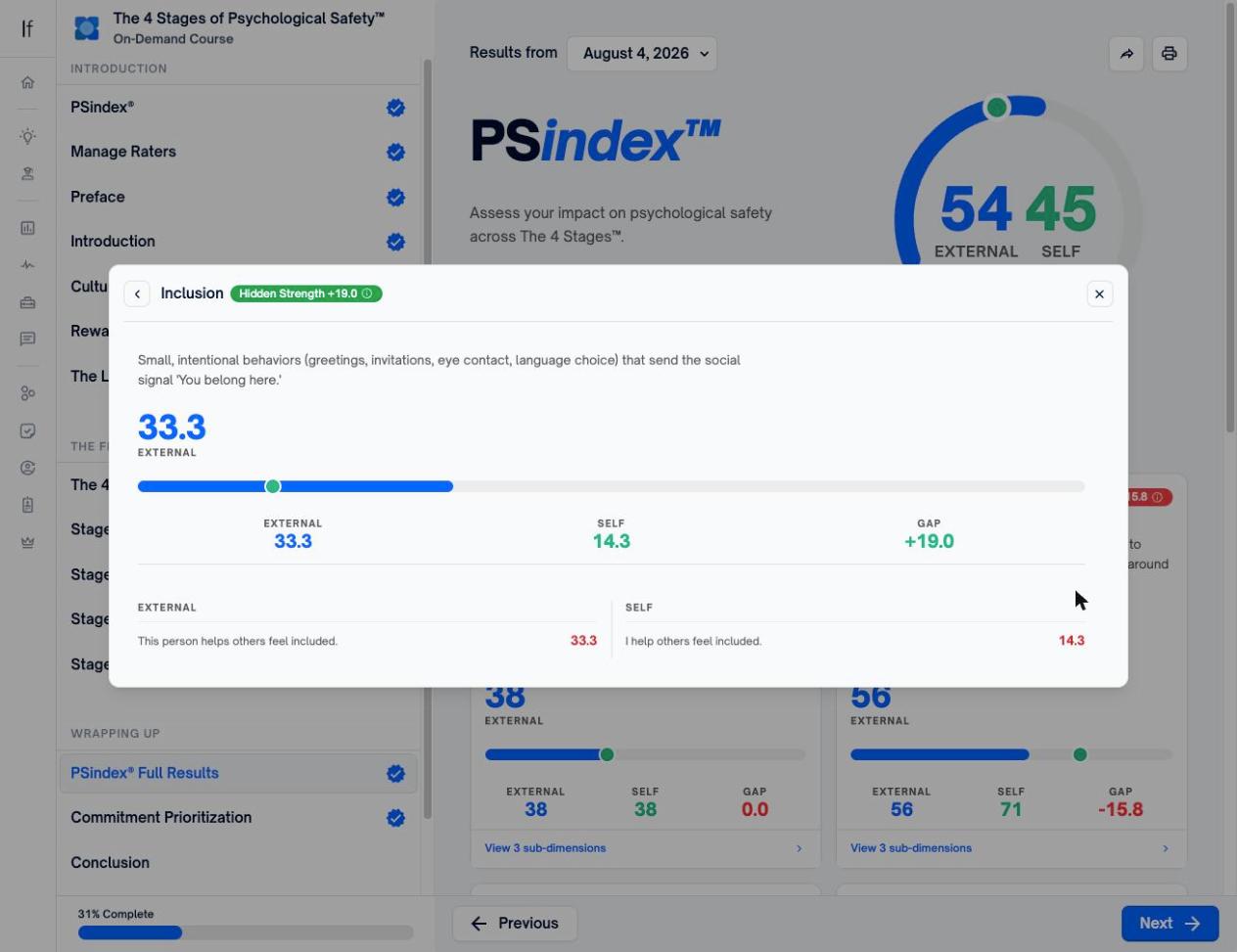
Open a card and learners see the survey item behind the number, with the external and self wording side by side: “This person helps others feel included” next to “I help others feel included.”
Qualitative observations on the screen
Each stage’s open-ended rater feedback now appears on the results screen itself, verbatim, under the question it answers. For Inclusion Safety that question is “What is one thing this person could do to help you feel more included?”
An AI Coach debrief
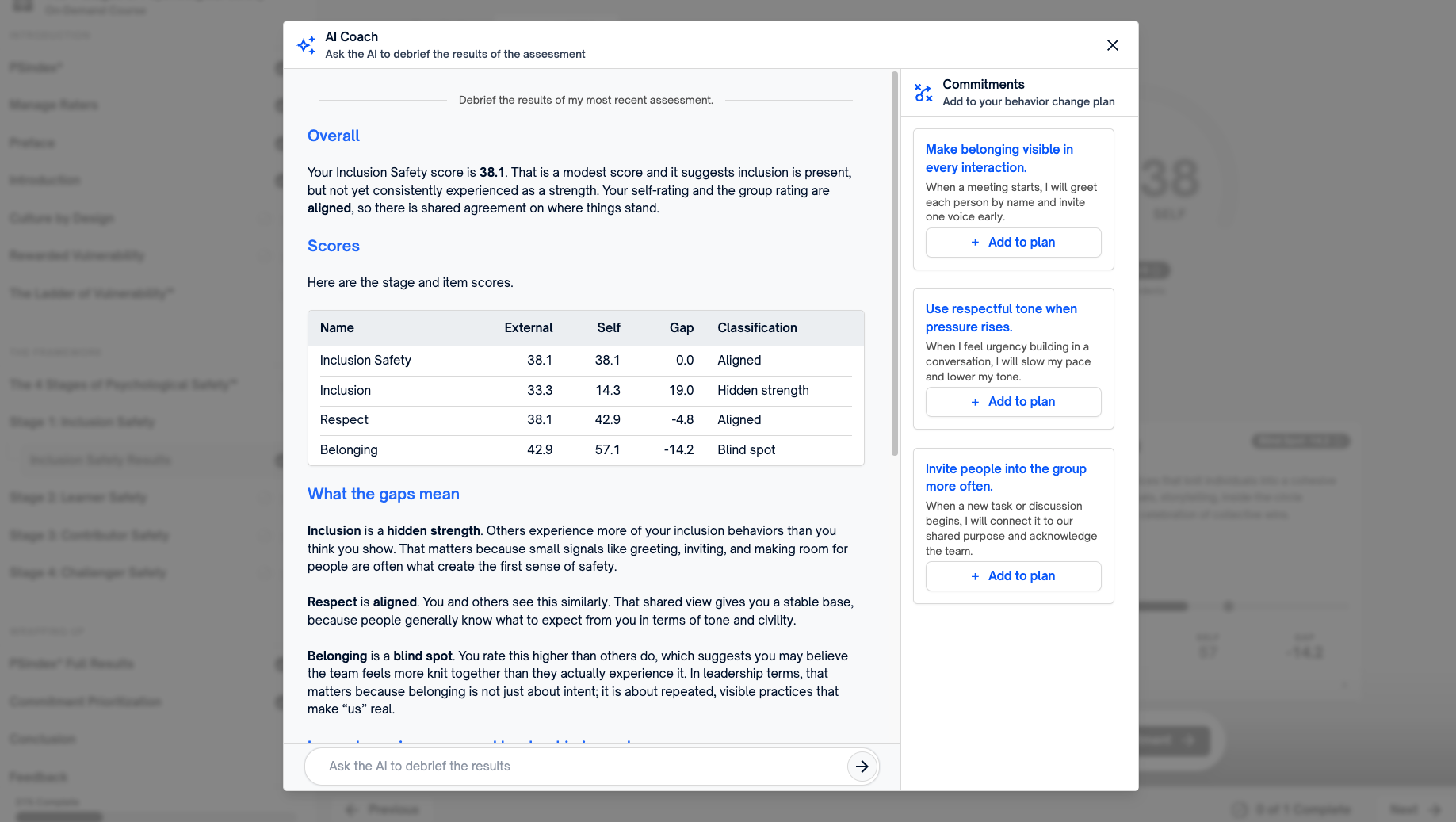
Every results screen has an Analyze your results button that opens the AI Coach. It debriefs the learner’s most recent assessment on its own: a plain-language read of the score, a full table of external, self, and gap figures for the stage and each sub-dimension, an interpretation of what each gap means, and a summary of what the pattern means for their leadership.
It does not stop at interpretation. The coach suggests specific commitments written as implementation intentions, and Add to plan puts any of them straight into the learner’s behavior change plan. The chat stays open underneath, so learners can ask follow-up questions about anything in their results.
From insight to commitment
A bar sits at the bottom of every stage results screen asking the learner to choose one commitment to work on. Choose a commitment opens a library organized by the stage’s key behaviors, which for Inclusion Safety are helping others feel included, treating others with respect, and fostering a sense of belonging. Every option is an implementation intention, for example “When I meet someone new on the team, I will introduce myself within the first five minutes rather than waiting for them to approach me.” Learners can write their own instead.
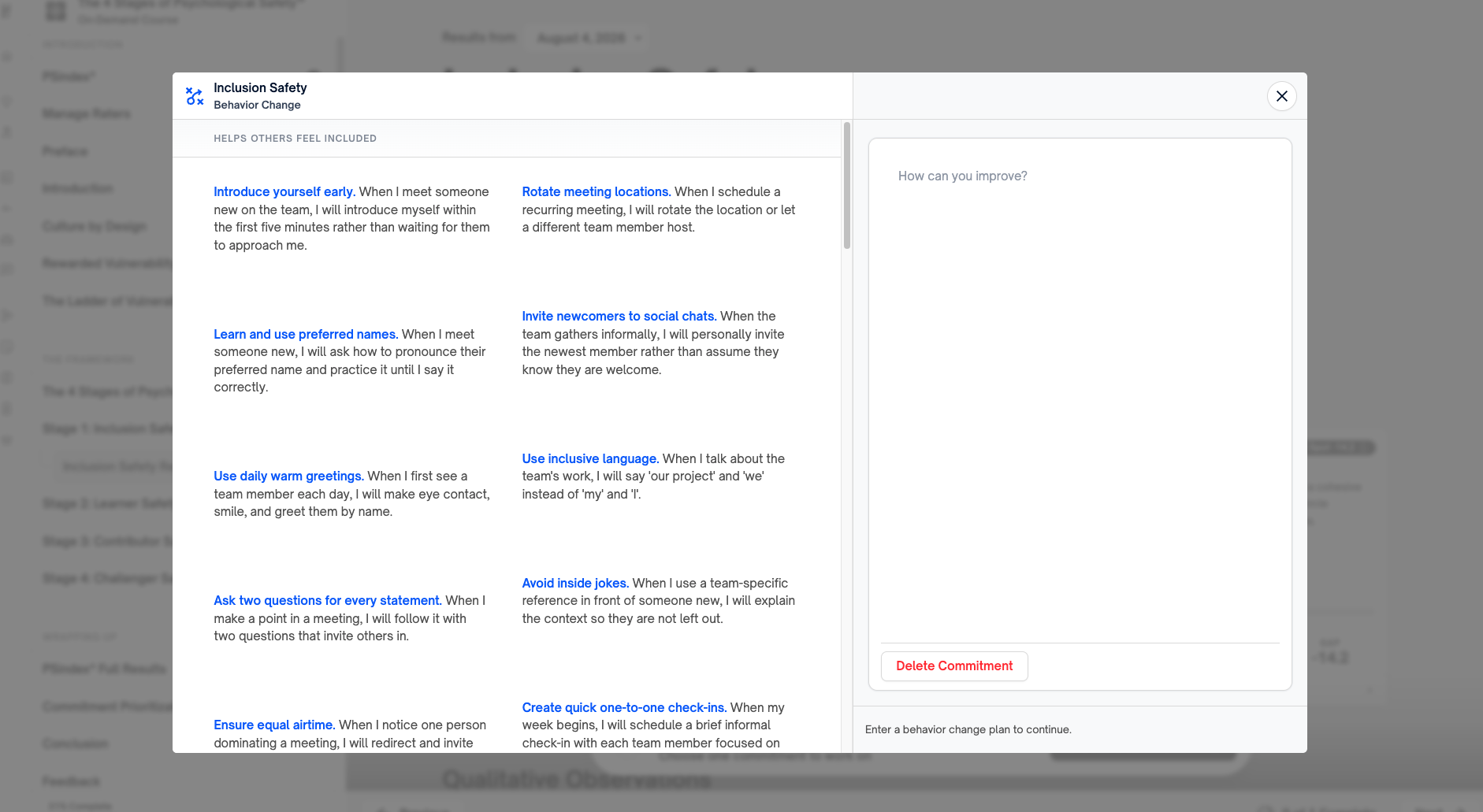
Choosing a commitment is what completes the lesson, so every learner leaves every stage with one concrete behavior to practice. Those commitments carry into the Behavior Change Center for weekly follow-through.
The full PSindex® Self-assessment report
Under WRAPPING UP, PSindex® Full Results brings all four stages together: the overall score on the same external and self gauge, with the same classification system.
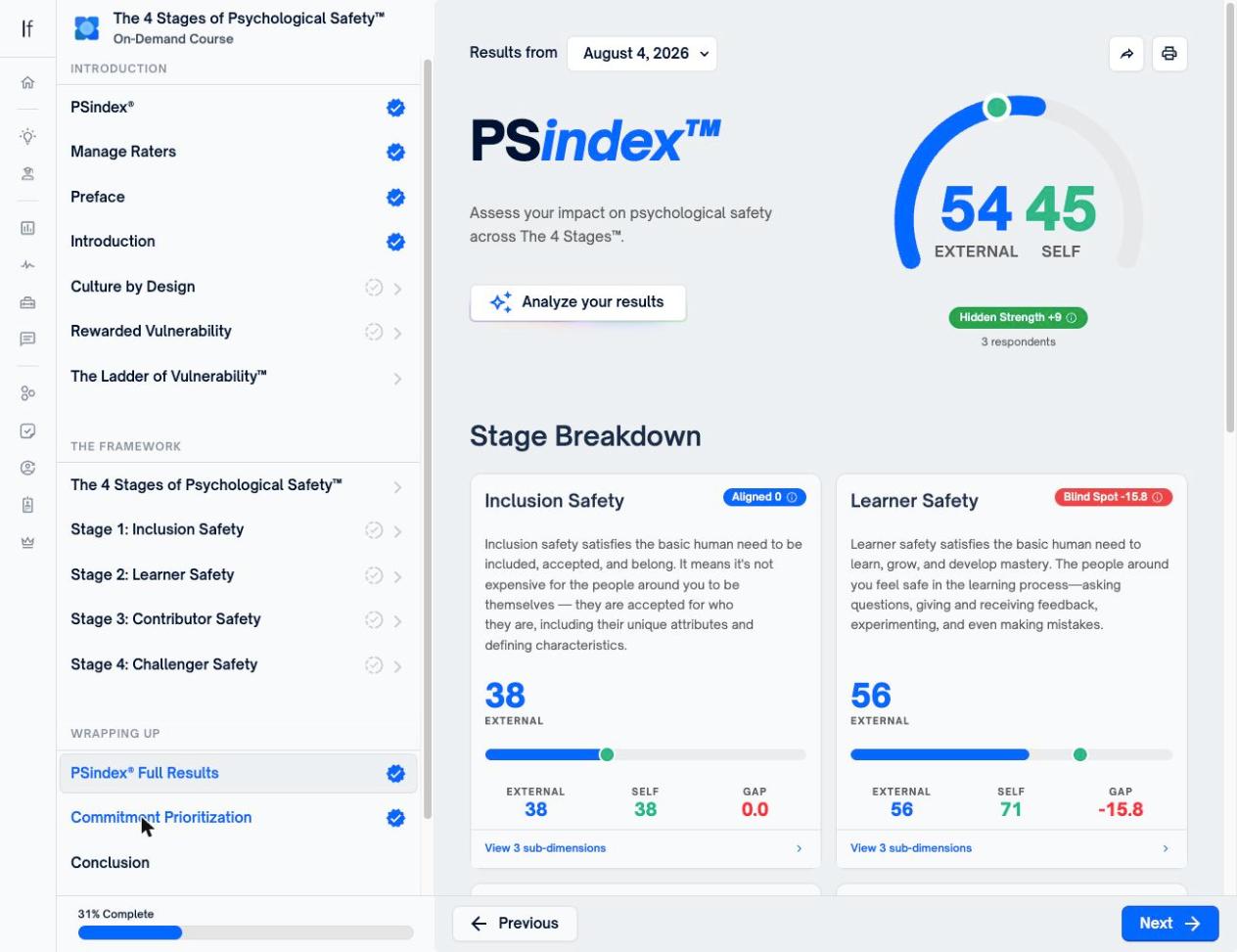
Stage Breakdown gives each stage a card, and each card opens a three-level drill-down: the stage, then its three sub-dimensions, then the individual survey items behind each score. All four stages’ qualitative feedback is collected on one screen, organized by question, and the AI Coach runs here too for a debrief across the whole report.
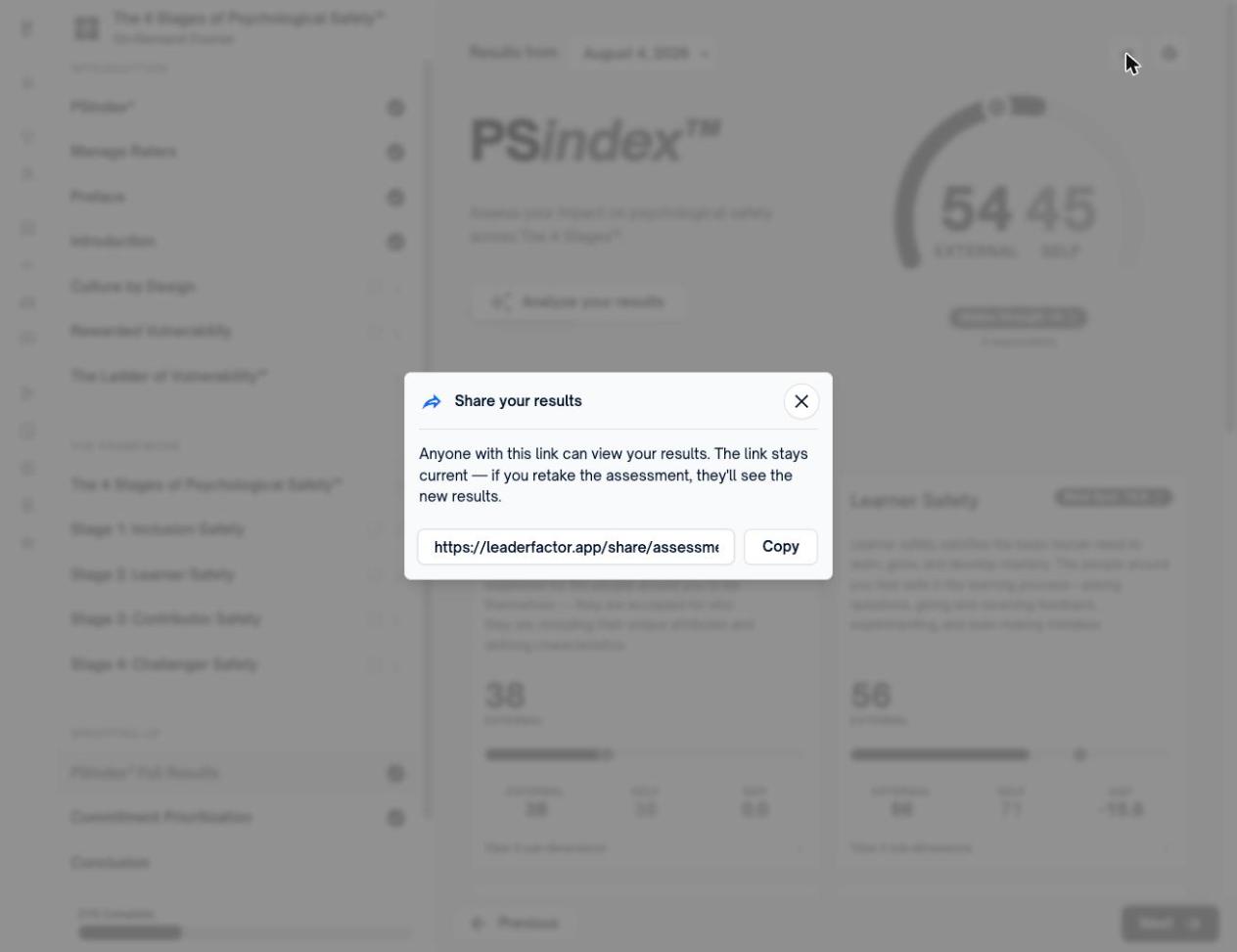
Share and print the full report
Two things make the full report easy to bring into a coaching conversation or a team discussion.
- Share generates a live link. Anyone with the link can view the results, and the link stays current, so if the learner retakes the assessment, viewers see the new results automatically.
- Print produces a printable copy in one click.
Improvements
- Learners who have taken the PSindex® more than once can switch between administrations with the Results from selector at the top of every results screen, which makes pre and post comparison part of the course rather than a report someone has to pull.
- All five screens share one anatomy, so reading the fourth stage takes no more learning than reading the first.
- Rater feedback and scores now sit on the same screen, instead of qualitative comments living apart from the numbers.
Get started
- Open The 4 Stages of Psychological Safety™ from your courses and work through a stage.
- At the end of the stage, open its results sub-lesson, for example Inclusion Safety Results.
- Click Analyze your results for the AI Coach debrief, and use the info icons to check what any gap means.
- Choose a commitment from the bar at the bottom to complete the lesson.
- When you reach WRAPPING UP, open PSindex® Full Results for the report across all four stages, then share or print it.
Questions about the new results screens or rolling the newest course version out to your learners? Reach out to the LeaderFactor solutions team.