
A redesigned cohort page
The cohort page now shows every participant in one table, with filters, report cards for the assessment, behavior change, feedback, and toolkit, and nudges for anyone who is behind.
The cohort page has been rebuilt around the people in it. Every participant now appears in one table, with where they are in each part of the program, and the cohort’s results sit right below it. Training admins and facilitators can see who is behind and nudge them without leaving the page.
What’s new
Every participant in one table
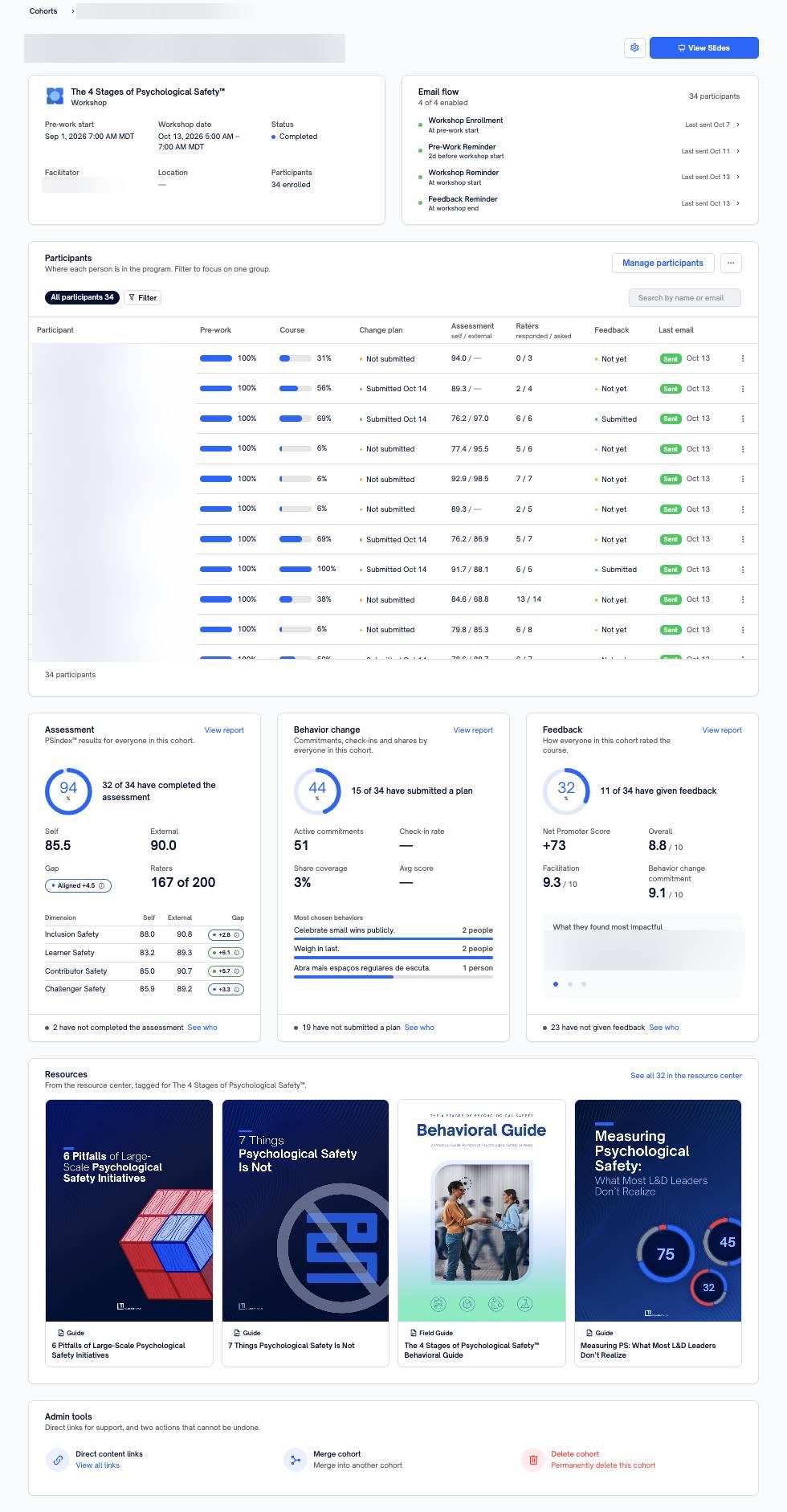
The Participants table has one row per person. Columns show each part of the course: Pre-work, Course, Change plan, Assessment (self / external), Raters (responded / asked), the course’s toolkit, Feedback, and Last email. A column appears only when the course has that step.
Filter to the people who need attention
Select Filter to narrow the table to one group. Each option shows how many people are in it:
- Not started
- Pre-work incomplete
- No change plan
- Assessment incomplete
- No rater responses
- Falling behind
- Hasn’t used the toolkit
- No feedback
- Email bounced
You can also search by name or email. Select any row to open that person’s panel with their enrollment, assessment results, rater coverage, and lesson-by-lesson progress.
The cohort’s results, on the same page
Below the table, report cards summarize the cohort:
- Assessment: how many have completed it, self and external scores, the gap between them, rater responses, and scores by dimension.
- Behavior change: how many have submitted a plan, active commitments, check-in rate, share coverage, average score, and the most chosen behaviors. Cohorts under four people stay private.
- Feedback: net promoter score and, for workshops, overall, facilitation, and behavior change commitment ratings out of 10, with quotes from learners.
- Toolkit: how many have used the course’s toolkit.
Nudge anyone who’s behind
Each card shows how many people haven’t done that step yet. Select See who to list them, then Nudge one person or Nudge all at once. Each person shows when they were last nudged.
Improvements
- The course details card shows pre-work start, workshop date, status, facilitator, location, and enrollment at a glance, beside the cohort’s email flow.
- Select the cohort’s title to rename it in place.
- Export the participant list as a CSV from More actions (the … button beside Manage participants).
- Resources tagged for the course appear on the page.
Get started
- Open Admin → Cohorts and select a cohort. Facilitators can open their own workshops the same way.
- Use Filter to focus on a group, such as Falling behind.
- On a report card, select See who, then Nudge the people who need a reminder.